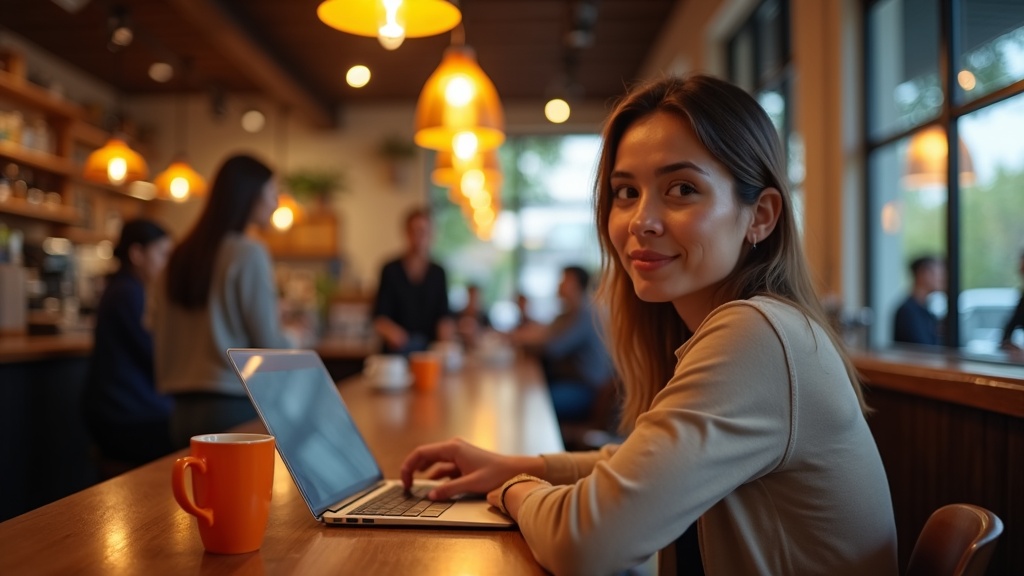
You’ve probably heard the warnings about using public Wi-Fi at coffee shops. Hackers lurking on the network, data getting stolen, passwords floating through the air. It all sounds pretty scary.
Here’s the thing though: most security problems at coffee shops don’t come from sophisticated cyber attacks. They come from much simpler stuff. Someone glancing at your screen while you’re typing a password. Leaving your laptop on the table when you walk to the bathroom. Clicking a sketchy link because you’re distracted and the espresso just kicked in.
The good news is that protecting yourself doesn’t require a computer science degree or expensive software. You don’t need to become paranoid or stop working from your favorite café. You just need to recognize where the actual risks are hiding in your daily routine.
Think of it like locking your car. You don’t need a master’s degree in automotive security. You just need to remember to press the button and check the door. Coffee shop security works the same way. A handful of simple habits can shut down most threats before they become problems.
This guide focuses on practical moves that fit into real life. No complicated setup. No technical headaches. Just straightforward choices that make you a much harder target without turning every coffee run into a security obstacle course.
Pick a seat like you care who can see your screen
Before you even open your laptop, think about where you’re sitting. The biggest security risk in a coffee shop isn’t always some hacker on the Wi-Fi. It’s the person standing behind you in line who can see your entire screen while you’re answering emails or checking your bank balance.
Find a seat with your back to a wall whenever possible. This cuts down the angles someone can peek from. Avoid sitting in the middle of the room facing outward, where anyone walking by gets a free show of whatever you’re working on. If you can’t get a wall seat, angle your screen away from foot traffic and the main flow of people.
Think about what you’re actually doing before you do it. Reviewing a client list with phone numbers and emails? Logging into your bank account? Opening a contract with salary details? Those are moments to be extra careful. Lower your screen brightness if it helps, or wait until you’re somewhere more private.
A basic privacy screen filter is one of those things that sounds fussy but actually isn’t. It darkens your screen for anyone viewing from the side, so only you get a clear picture straight on. No installation drama, just a thin sheet that clips or slides onto your laptop.
If you need to jot down a password or sensitive note, use a notebook you can close instead of leaving it open on the table. And if you’re taking a call that involves anything private, step outside or find a quiet corner. People remember more than you think when they overhear numbers, names, or details that sound important.
Lock your laptop and keep it boringly up to date
Picture this: you’ve left your laptop open on the table while you grab your coffee order. Someone walks by, sees your screen, and now they’ve got a peek at your client files or email. It takes about ten seconds.
The simplest defense is making your laptop lock itself when you’re not touching it. Go into your settings and set the auto-lock timer to something short, like two or three minutes. That way, if you get distracted or step away, your screen goes dark and asks for a password before anyone can get back in. While you’re there, make sure your laptop requires a password or fingerprint every time it wakes up from sleep. No exceptions.
Your device passcode matters too. Skip the easy-to-guess stuff like your birthday or simple patterns. A decent passcode keeps someone from getting in even if they have physical access to your laptop.
Now for the boring part that actually matters: updates. When your computer nags you about installing system updates or browser patches, it’s not just adding features. Most updates fix security holes that hackers already know about. If you ignore them, you’re leaving known weak spots wide open. Set your operating system to install updates automatically if you can, so you don’t have to think about it.
One more quick win: if your laptop has built-in disk encryption and it’s not turned on yet, flip that switch. On modern computers, it’s usually called FileVault on Macs or BitLocker on Windows. It scrambles everything on your hard drive so that if someone physically steals your laptop, they can’t just pull out the drive and read your files. It’s already there, already easy, and you’ll never notice it running.
Make your accounts harder to hijack in one bad moment
One sloppy login on a coffee shop network can unravel months of careful work. If someone intercepts your password or you accidentally type it into a fake login screen, they now own that account. And if you reuse that same password everywhere, they own all of them.
The simplest fix is using a password manager. These apps generate long, random passwords for every site and remember them for you. You only need to memorize one strong master password. When you log in somewhere, the manager fills it in automatically. No typing means no one can watch over your shoulder and steal it.
Turn on multi-factor authentication everywhere it matters. That means your email, banking, work tools, and cloud storage. Even if someone gets your password, they still can’t get in without the second step. Use an authenticator app on your phone or a physical security key if the site allows it. Avoid SMS codes when possible since phone numbers can be hijacked.
Pay attention to where you’re typing. If someone’s hovering nearby or the person behind you has a clear view of your screen, wait. Close the laptop lid for a moment or reposition yourself. It sounds paranoid, but shoulder surfing is real and surprisingly effective.
Watch out for fake login pop-ups, especially on public networks. If a site suddenly asks you to log in again for no reason, double-check the address bar. Scammers set up convincing fakes to collect credentials. When in doubt, close the tab and navigate to the site fresh.
Finally, log out of sensitive accounts when you’re done. Staying logged into your bank or work email on a public network just leaves the door open longer than it needs to be. It takes two seconds and removes one more opportunity for something to go wrong.
Have a plan for bathroom breaks and coffee refills
Here’s the most common way laptops disappear from coffee shops: someone leaves their device on the table to grab a refill or run to the bathroom. They’re only gone for thirty seconds. When they come back, the laptop is gone.
The simple rule is to take your laptop with you every single time you leave your seat. Yes, every time. It feels slightly paranoid until you remember that a laptop can be sold or wiped for parts in minutes, and your insurance won’t care that you were only gone briefly.
Before you stand up, close your laptop and lock the screen. Tuck it under your arm or slip it into your bag. If you’re just getting a coffee refill ten feet away, you can probably get away with leaving it if you keep constant eyes on your table. But bathrooms are different. You can’t watch your stuff from inside a bathroom stall.
If you’re working with a friend or colleague you trust, asking them to watch your gear is fine. But don’t ask the stranger next to you. They didn’t come to the café to be responsible for your equipment, and if something goes missing, you’re both in an awkward spot.
Some people use cable locks that attach the laptop to the table. These can slow down a casual thief, but they’re not a real security solution. A determined person can cut through most cables in seconds, and you’re still leaving your device visible and vulnerable.
The best approach is boring but effective: pack everything up if you’re stepping away for more than a glance. It takes fifteen extra seconds and saves you from a very bad day.
Keep client and personal details out of earshot
The person at the next table might not be actively eavesdropping, but they can still hear you. And sometimes what they overhear matters more than what they could grab from your screen.
If you need to take a call that involves client names, project details, or anything remotely sensitive, grab your earbuds first. They keep both sides of the conversation contained. Even then, speak more quietly than feels natural. Coffee shops have a way of carrying sound further than you expect.
Avoid saying full names, addresses, account numbers, or passwords out loud. Ever. If you absolutely must share that kind of information, step outside or find a quiet corner away from other people. Better yet, reschedule the call for when you’re somewhere private.
Voice assistants and speakerphone are particularly risky in public spaces. Your phone broadcasting both sides of a conversation turns everyone nearby into an accidental audience. Keep speakerphone off, and think twice before asking Siri or Alexa to read your messages or pull up sensitive information.
If a call starts heading into territory you didn’t expect, like discussing budgets, contracts, or personal details, it’s completely fine to pause and say you’ll call back later. Most people understand. The temporary inconvenience beats the permanent awkwardness of realizing a stranger now knows your client’s budget or your home address.
The goal isn’t paranoia. It’s just recognizing that sound travels and strangers have ears. A little awareness about what you say out loud goes a long way toward keeping your business your own.
Assume your screen and files could be exposed and minimize what’s open
Picture this: someone walking past your table can see everything on your screen for a solid three seconds. Or you step away to use the bathroom and leave your laptop open. What would they see?
The smartest habit you can build is keeping only what you actually need open at any given moment. Close browser tabs you’re not using right now. Minimize or quit documents and apps you’re done with. It sounds obvious, but most of us have a dozen things open at once without thinking about it.
Your desktop is worth tidying too. If you save everything there, anyone glancing at your screen sees a buffet of file names that might reveal client names, project details, or personal information. Keep your desktop clean and move files into folders or cloud storage as you finish with them.
Speaking of cloud storage, it’s usually safer than keeping everything local on your laptop. If your device gets stolen from a coffee shop, your files are still safe in the cloud. Just remember that cloud links can be tricky. Before you send someone a link to a document or folder, double-check who has access to it. Those “anyone with the link can view” settings are convenient but can backfire if the link gets forwarded.
One more trick that helps: use separate browser profiles for work and personal stuff. Most browsers let you do this easily. It keeps your work tabs, passwords, and history in one space and everything else in another. When you’re working in public, you only open your work profile and nothing personal bleeds through. It’s a simple boundary that makes a real difference when someone’s looking over your shoulder.
Notice the small red flags that lead to big mistakes
Coffee shops create a unique kind of distraction. You’re juggling your latte, answering emails, and half-listening to the conversation next to you. That’s exactly when small warning signs slip past your radar.
Someone leaning over to offer unsolicited help with your laptop might seem friendly. But letting a stranger touch your device or see your screen gives them more access than you realize. The same goes for random USB drives left on tables or offered as “promotional items.” Plugging in unknown devices can install malware before you even notice something’s wrong.
Digital red flags often show up when you’re most distracted. A pop-up asking you to re-enter your password looks legitimate until you pause and wonder why you’re suddenly logged out. An urgent email from your “bank” arrives right when you’re focused on a deadline. These aren’t coincidences. They’re designed to catch you when your guard is down.
QR codes on tables can be especially tricky. That code promising the coffee shop’s menu might send you somewhere completely different. If the URL looks strange or unfamiliar after you scan it, don’t continue.
The fix is simpler than you’d think. Train yourself to pause for three seconds before responding to anything unexpected. Got an urgent email from your bank? Close it and type your bank’s web address directly into your browser instead of clicking links. Someone offering help? Politely decline and handle it yourself. Found a USB drive? Leave it alone.
This pause-and-check habit feels awkward at first. But it’s the difference between catching a problem early and dealing with a compromised account later.